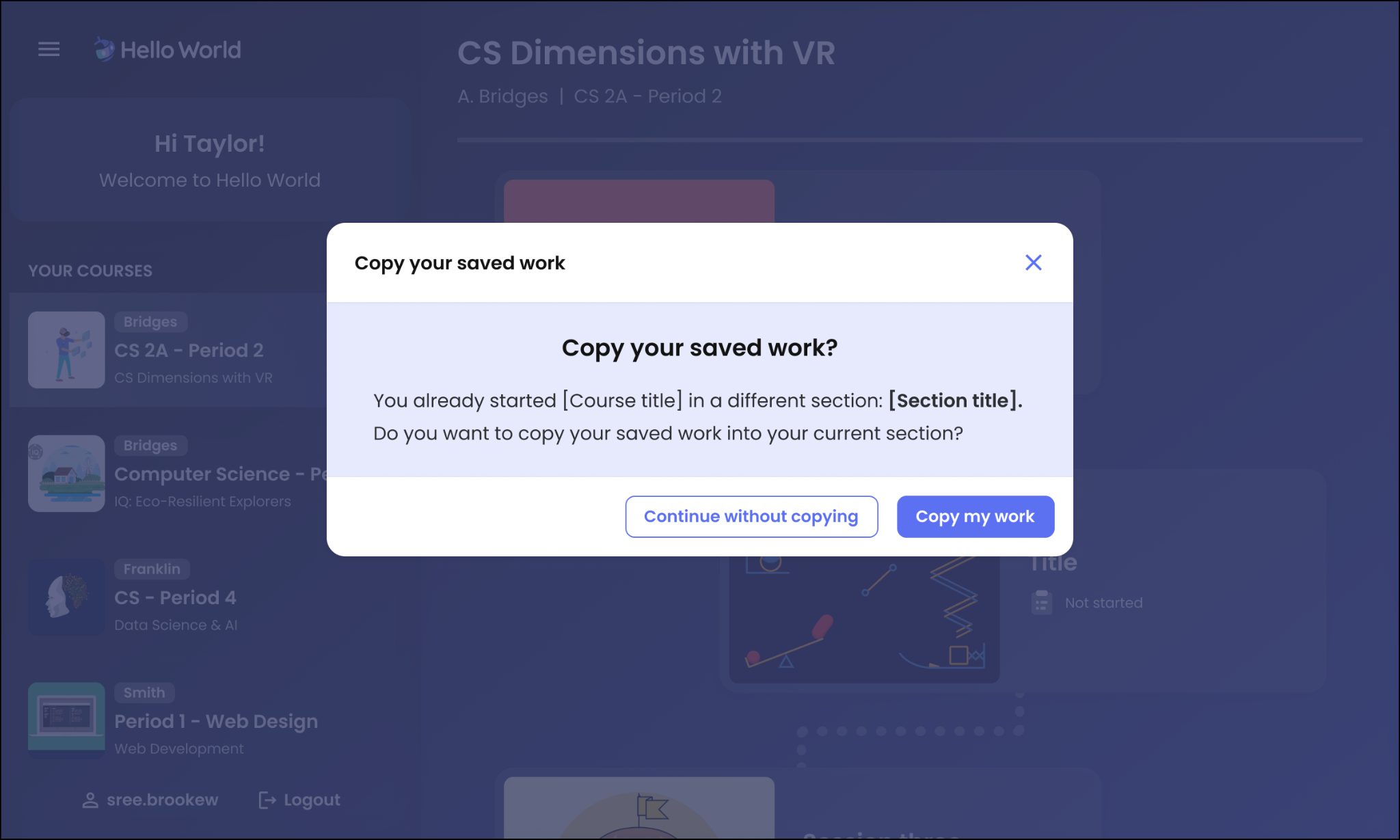
When you open a course in your current section, the platform automatically checks if you have existing work stored in another section. If progress is detected, a prompt titled "Copy your saved work" will appear on your screen.
How to Copy Your Work
Scenario 1: You Have Saved Progress in One Other Section
When the pop-up appears, review the Course Title and the Section Title listed in the message.
Click Copy my work to import all your saved progress into your current section.
If you prefer to start fresh without importing previous work, click Continue without copying.
Scenario 2: You Have Saved Progress in Multiple Sections
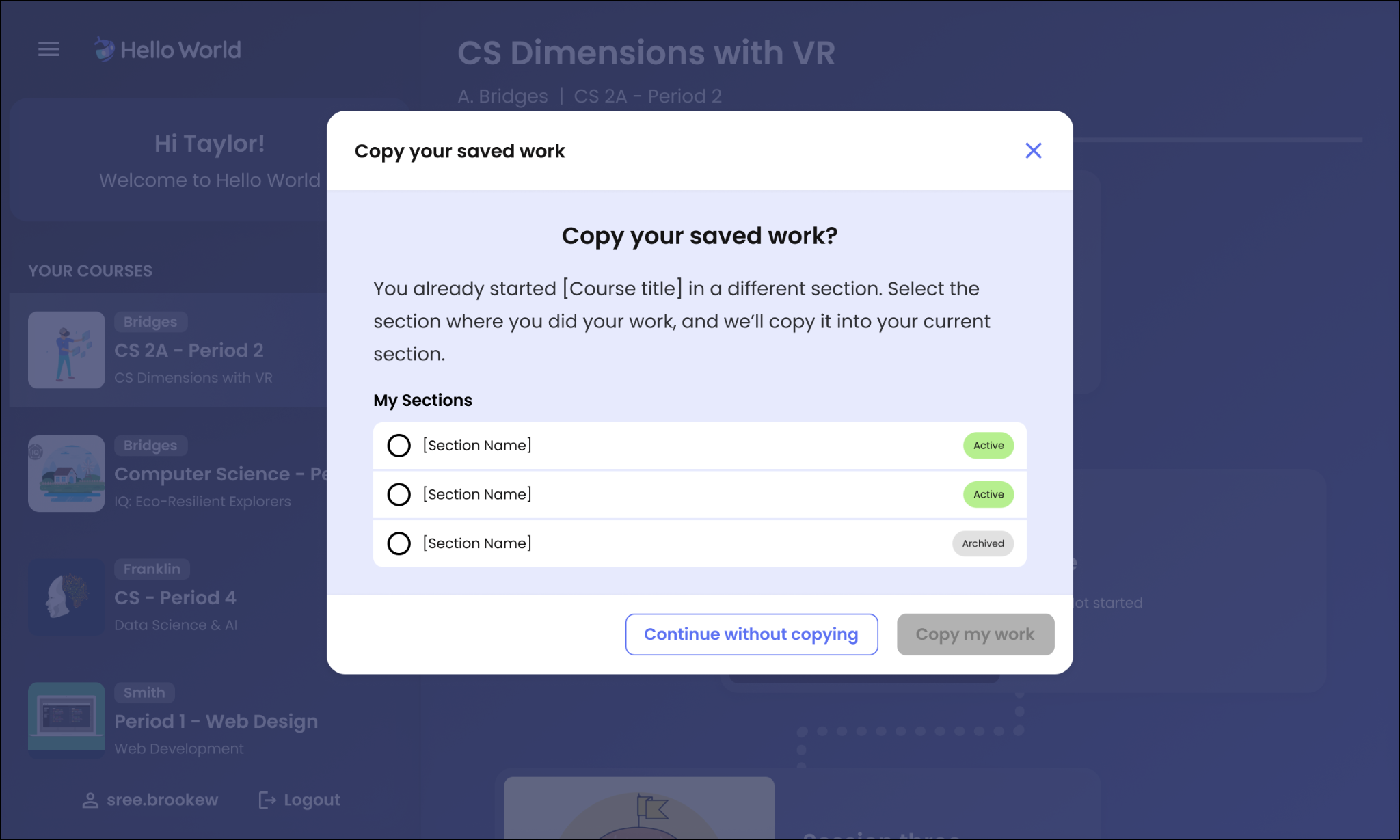
If you have worked on the course across more than one previous section:
A scrollable list of all sections containing saved progress will appear.
Active sections are listed first, followed by Archived sections.
Click on the specific section you want to copy your progress from.
Once a section is selected, the Copy my work button will activate.
Click Copy my work to confirm your selection, or choose Continue without copying to start fresh.
Frequently Asked Questions (FAQ)
Can I undo copying my work?
Once you copy your work into the current section, your progress updates immediately. Make sure you select the correct section before clicking Copy my work.
What happens if I click "Continue without copying"?
Your current section will remain blank or at its starting state, but your original progress in the previous section(s) will remain safe and untouched.