
1. Navigate to your Sections Roster & Login Page
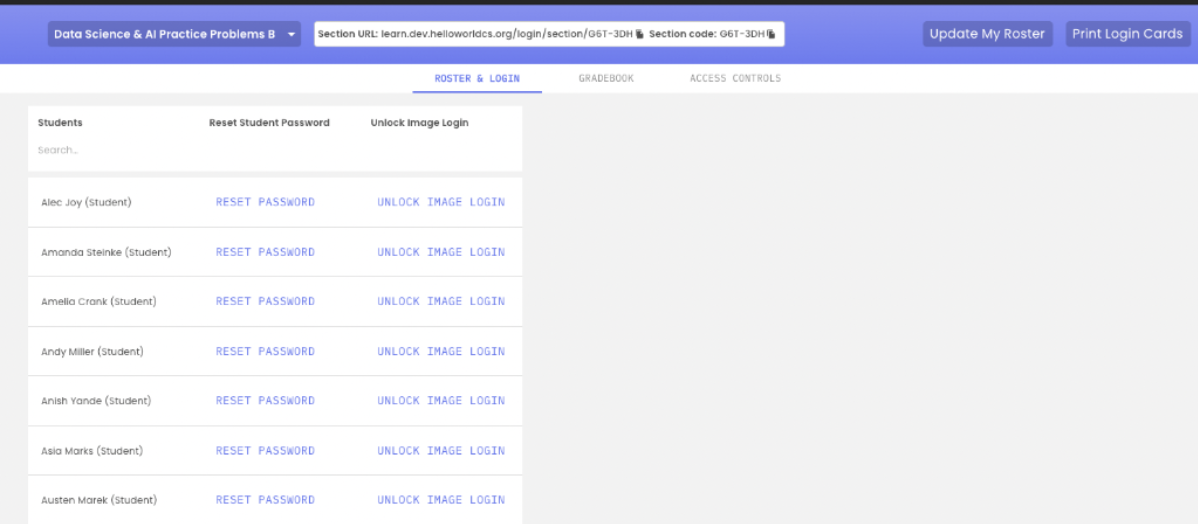
2. Locate the student's Name in the roster and click on the corresponding RESET PASSWORD button.

3. Enter in a new password (min 12 characters in length) and click SAVE
- Click the circular arrow icon to generate a suggested password, which you can use as-is or customize.
- Click the eyeball icon to show or hide your password while typing


4. Click SAVE to save your changes.
Contact support for additional assistance.